Accounts payable
Stop keying invoices and focus on the exceptions that need judgement.
APAccounts payableAP Automation
Every invoice captured from the inbox, matched to the subcontract, PO and approved variations, and posted to your ERP with retention applied. Over-claims and duplicates are flagged before anyone approves.
Book a demoConnects with the platforms your teams already use
 Oracle Aconex
 Procore
 Autodesk Construction Cloud
 Microsoft 365
'/%3e%3cpath%20d='M10.187%2023.776a3.384%203.384%200%200%201-1.049-1.109%203.018%203.018%200%200%201-.365-1.517%202.919%202.919%200%200%201%20.679-1.965%204.011%204.011%200%200%201%201.806-1.178%207.629%207.629%200%200%201%202.467-.382%209.392%209.392%200%200%201%203.25.455v2.3a5.073%205.073%200%200%200-1.47-.6%207.159%207.159%200%200%200-1.719-.206%203.719%203.719%200%200%200-1.767.374%201.159%201.159%200%200%200-.7%201.062%201.076%201.076%200%200%200%20.3.752%202.69%202.69%200%200%200%20.8.572q.5.249%201.5.662a1.519%201.519%200%200%201%20.214.086%2012.341%2012.341%200%200%201%201.892.933%203.387%203.387%200%200%201%201.118%201.126%203.264%203.264%200%200%201%20.4%201.7%203.162%203.162%200%200%201-.636%202.046%203.557%203.557%200%200%201-1.7%201.144%207.71%207.71%200%200%201-2.424.352%2012.824%2012.824%200%200%201-2.2-.18%207.534%207.534%200%200%201-1.783-.524v-2.425a5.746%205.746%200%200%200%201.8.86%207.042%207.042%200%200%200%201.986.318%203.42%203.42%200%200%200%201.8-.382A1.208%201.208%200%200%200%2015%2026.971a1.15%201.15%200%200%200-.34-.826%203.425%203.425%200%200%200-.937-.653q-.6-.3-1.767-.791a10.044%2010.044%200%200%201-1.769-.925z'%20fill='%23fff'/%3e%3c/svg%3e) SharePoint
SharePoint'%20d='M256%200v341.333H142.222V0z'%20mask='url(%23SVGvCV5wclL)'/%3e%3cpath%20fill-opacity='.2'%20d='M184.889%20100.978v241.778H71.11v-256h99.556c7.854%200%2014.222%206.367%2014.222%2014.222'%20mask='url(%23SVGvCV5wclL)'/%3e%3cpath%20fill-opacity='.18'%20d='M184.889%20106.667v241.777H71.11v-256h99.556c7.854%200%2014.222%206.368%2014.222%2014.223'%20mask='url(%23SVGvCV5wclL)'/%3e%3cpath%20fill='url(%23SVG5tapKdof)'%20d='M184.889%2099.556v241.777H71.11v-256h99.556c7.854%200%2014.222%206.368%2014.222%2014.223'%20mask='url(%23SVGvCV5wclL)'/%3e%3cpath%20fill='url(%23SVGRvjwscVp)'%20d='M0%20170.667v170.666h113.778V184.89c0-7.855-6.368-14.222-14.222-14.222z'%20mask='url(%23SVGvCV5wclL)'/%3e%3c/svg%3e) Power BI
Power BIQuick answer
Check each claim against the subcontract, approved variations, rates and photo evidence before it is approved, and hold payment when insurances or licences have lapsed. Hivenox matches every subcontractor invoice to the subcontract, PO and approved variations, applies retention and flags over-claims and duplicates before payment.
How payment is held when insurances lapseAt a glance
How it works
Forward invoices or point a dedicated inbox at Hivenox, and every invoice, credit note and statement is collected automatically.
See it in actionAI reads the supplier, amounts, tax and line items, then checks them against your ERP's jobs, cost codes and GL accounts, and against the subcontract or PO.
See it in actionRoute each invoice to the right approver by job, amount, cost code or subcontractor, with mobile approval for project managers on site.
See it in actionApproved invoices post directly to the ERP with the image attached. No exports, CSVs or manual imports.
See it in actionWhen a subcontractor's insurance or licence lapses, their invoices are held automatically until the documents are current.
See it in actionGeneric AP tools stop at the invoice. Hivenox handles the realities of construction accounting.
Every invoice is coded to the right job, cost code and cost type, so job cost reports reflect what's happening on site.
Invoices are matched to subcontracts, purchase orders and approved variations, with over-claims flagged before approval.
Retention, GST/VAT and progress-claim terms are applied per contract on every invoice.
The same invoice submitted twice is caught, even when the number or format differs.
Built for complex delivery
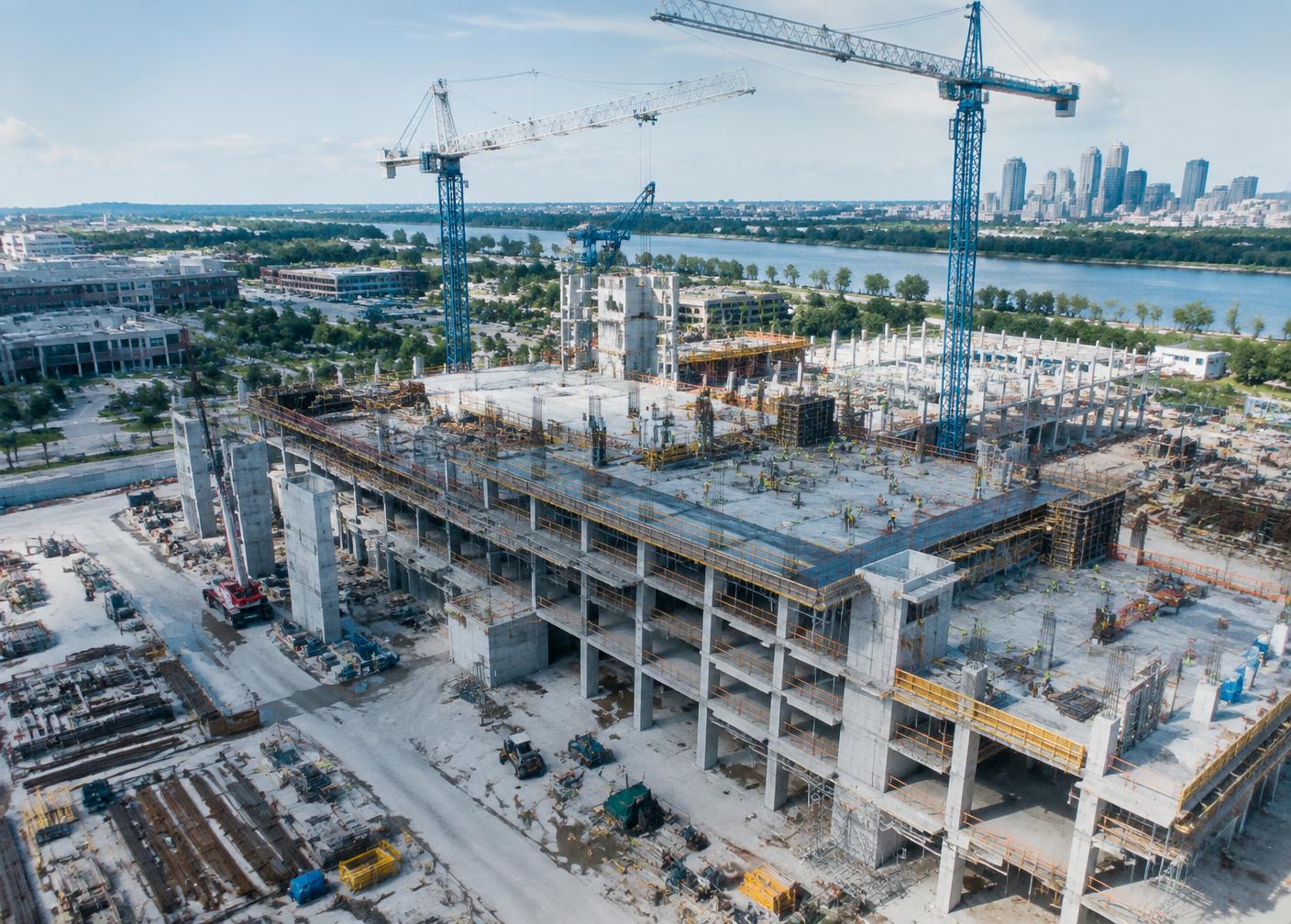
AP Automation runs on the same record as Hivenox Construction OS, so site, commercial and finance teams see the same numbers.

Who it's for
How AP Automation helps each team, from site to board.
Stop keying invoices and focus on the exceptions that need judgement.
Approve from site with the subcontract and remaining budget in front of you.
A current view of liabilities and accruals instead of a pile of unprocessed paper.
Implementation
Our delivery team works through each stage with you, with approvals and delegations set from day one.
Pick one live job or contract and record today's baseline.
Link the ERP, project and document systems it runs on.
Run it on the job, with approvals and delegations set.
Integrations
Oracle AconexProcoreAutodesk Construction CloudMicrosoft 365SharePointPower BIStart with one module
Each module runs on the same record as Hivenox Construction OS, so nothing is re-keyed when you add the next one.
Insurances, licences and safety documents collected and checked. Payment held automatically when anything lapses.
Available nowAsk ‘which jobs have unpriced variations over $50k?’ and get the answer, traced to the source record.
Available nowJobs, cost codes, commitments and timesheets kept in step between your project systems and your ERP. No re-keying at month-end.
Available nowReceipts captured on site and coded to the job and cost code before they reach your ERP.
Available nowFor IT teams: work with ERP and project data in ChatGPT, Claude or Copilot, under the same permissions and audit trail as Hivenox.
Available nowSee subcontractor and supplier invoices matched to the subcontract, PO and approved variations on one of your own jobs.
Book a demo